About the Author:
Mera naam MD Maqsood hai aur main pichhle 7+ years se active professional video editor ke roop mein digital media production field mein work kar raha hoon. YouTube par mere official channel m4editorofficial par 13.6K+ subscribers hain aur Instagram par m4_editor_official par 145K+ passionate creators ki family hai, jahan main authentic post-production tricks, viral aesthetic templates aur practical visual advice completely free share karta hoon. Is guide mein mera focus hai ki main apna real timeline testing experience aapke saath share karun taaki aapke slow-motion visuals buttery smooth ban sakein.
VN Slow Motion Template Download for Instagram Reels: Smooth 60FPS Cinematic Guide M4 186
Instagram Reels par agar koi visual style viewers ko screen par finger stop karne par majboor karta hai, toh wohi hai ultra-smooth cinematic slow motion. Chahe bike entry shot ho, aesthetic sunset travel walk ho, fitness transformation reel ho ya atmospheric fashion portrait—ek perfectly timed slow-motion ramp kisi bhi ordinary video clip ko instantly high-budget music video jaisa look provide kar deta hai.
Lekin aksar beginners jab normal editing app mein speed kam karte hain, toh unki video smooth hone ke bajaye stutter, lag aur frame drops se bhar jaati hai. Yahan par manual keyframing aur speed graphs samajhna naye creators ke liye thoda complicated ho sakta hai. Is problem ka sabse reliable aur practical solution hai VN slow motion template download for Instagram Reels.
Is comprehensive, beginner-friendly guide mein hum step-by-step explore karenge ki slow motion templates kaise work karte hain, unhe officially aur safely kaise download aur import kiya jata hai, smooth speed ramps ke technical parameters kya hain, aur bina kisi jitter ke professional cinematic reels kaise export ki jaati hain.
Slow Motion Reels Ka Viral Logic Aur Visual Psychology
Social media algorithm ka direct rule hai: High Audience Retention equals Massive Reach. Jab aapki video slow motion mein move karti hai, toh viewer ka dhyan ordinary details par focus karta hai—jaise hawa mein udte baal, water splashes, lens flares, aur subtle facial expressions.
- Emotional Impact: Slow motion footage viewer ke brain mein suspense aur emotion create karti hai, jisse song ki beat drop ka visual weight double ho jata hai.
- Watch Time Multiplier: Speed ramping (fast-to-slow-to-fast motion) se video ka pacing engaging rehta hai, jisse log video ko start se end tak complete dekhte hain aur loop rate increase hota hai.
- Production Value: Properly frame-paced slow motion reel aisa visual feel deti hai jaise use kisi high-end cinema camera par record kiya gaya ho.
Real Slow Motion Aur Fake Stutter Ka Technical Difference
Bohot se beginners sochte hain ki kisi bhi 30FPS ki normal video ko timeline par 0.2x speed kar dene se wo slow motion ban jayegi. Yeh sabse badi galatfahmi hai jo video ko kharab karti hai.
Jab aap kisi standard 30 Frames Per Second (FPS) video ki speed 50% slow karte hain, toh software ke paas screen par dikhane ke liye sirf 15 frames bachte hain. Iska result ye hota hai ki video jumpy aur choppy ho jaati hai.
Genuine cinematic slow motion ke liye aapko do cheezon ki zarurat hoti hai:
- Camera Shooting Settings: Hamesha apni footage ko apne smartphone ya camera mein 60FPS ya 120FPS par record karein. Isse software ko har second ke andar sufficient frames milte hain, jisse playback buttery smooth rehta hai.
- Non-Linear Speed Curve: Flat linear slow motion boring lagta hai. Professional videos mein Velocity / Speed Ramp Curve use hota hai, jahan beat aate hi video fast hoti hai aur beat hit hone par smooth slow stretch ho jaati hai.
VN Video Editor Template Architecture: QR Code System Kaise Kaam Karta Hai?
Traditional desktop editors mein project files transfer karna complex hota hai, lekin VN Video Editor ne is pure workflow ko visual QR codes aur direct .vntemplate format mein convert karke super-easy bana diya hai.
- Pre-Baked Velocity Curves: Har VN slow motion template ke andar complex Bezier curve graphs pehle se programmed aate hain, jisse aapko manual nodes drag karne ki zarurat nahi hoti.
- Built-in Colour Profiles: Jyadatar top creators apne templates ke andar subtle moody cinema LUTs integrate karke rakhte hain, jisse aapki raw clips automatically colour-graded ho jaati hain.
- Beat-Locked Audio Snapping: Templates background trending sound ke beats ke sath pre-aligned hote hain, isliye aapki clip ka slow-down moment exact musical drop par fall karta hai.
Step 1: Pre-Production Footage Checklist (Shooting Guidelines)
Kisi bhi ready-made template mein video daalne se pehle ye ensure karein ki aapki raw video file slow-motion ready hai:
- Shutter Speed Rule: Din ke natural light mein shoot karein. Low light mein 60FPS shoot karne se video grainy aur dark ho sakti hai.
- Camera Stabilisation: Apne phone ko dono haathon se firm pakdein ya ultra-wide lens stabilisation mode enable karein—unwanted shake slow-motion mein zyada notice hota hai.
- Motion Continuity: Shot mein actual physical motion hona chahiye (jaise chalte hue aana, camera ka circular orbit movement, ya object throw). Static subject par slow motion ka impact nahi dikhta.
Step 2: VN Slow Motion Template Download Aur Import Process
Template download aur implement karne ke do 100% genuine aur safe methods hain:
Method A: VN Code Image (QR Code Scan)
- Official creator channels (jaise hamare tutorials ya verified visual creators ke pages) se slow-motion template ka VN Code image apni gallery mein save karein.
- Apne device mein VN Video Editor app open karein.
- Top header bar par diye gaye Scan (Camera/QR) icon par tap karein.
- Top right corner se gallery icon choose karke saved QR code image select karein.
- App automatically server se asset data link fetch karegi aur Download Template ka prompt aayega. Us par tap karein.
Method B: Direct VN Template Link / File Import
- Agar aapke paas direct .vntemplate link hai, toh browser mein link open karein; wo automatically VN app ke sath open hone ka option pop-up karega.
- Template workspace load hote hi Use Template button par tap karein.
Step 3: Media Replacement Aur Clip Framing Balance
Jaise hi template load hoga, VN aapse media tracks ke liye files select karne ko kahega:
- Apni gallery se selected 60FPS clip choose karein aur import confirm karein.
- Template screen par aapko preview dikhayega jahan timeline automatic segments mein split hogi.
- Focal Point Alignment: Har clip segment par tap karke preview karein ki subject centre-frame mein hai ya nahi. Agar subject slow-down ke waqt crop ho raha ho, toh frame ko two fingers se pinch-zoom ya pan karke re-position karein.
- Action Point Placement: Template ke speed curve ka jo sabse deep downward point (slowest zone) hota hai, wahan aapke action ka peak moment aana chahiye (jaise jump ka highest air-time ya eye-blink).
Step 4: Speed Curve Fine-Tuning (Custom Adjustment)
Agar template apply karne ke baad aapko lagta hai ki video ka slow-motion aapki recording se slightly out of sync hai, toh VN aapko timeline unlock karne ki aazadi deta hai:
- Timeline par clip select karein aur bottom toolbar mein Speed option par tap karein.
- Standard linear slider ke bajaye Curve tab select karein.
- Yahan aapko speed graph dikhega:
- Upar ki taraf curve: Clip fast forward (2x, 3x ya 5x) hogi.
- Neeche ki taraf curve: Clip slow-motion (0.5x, 0.2x ya 0.1x) mein enter karegi.
- Nodes ko horizontally drag karke aap slow-motion ka timing apne music ki beat ke mutabiq exact microsecond par snap kar sakte hain.
Step 5: Optical Flow Interpolation for Ultra-Smooth Playback
Agar aapke paas 30FPS ki video hai aur aap use smooth slow banana chahte hain bina choppy lage, toh VN ka built-in AI frame blending tool use karein:
- Speed settings ke andar hi aapko Make it smoother ya Optical Flow ka toggle milta hai.
- Is option ko enable karne par app missing frames ke beech artificial interpolation generate karti hai.
- Is process ko process hone mein 10 se 30 seconds ka rendering time lagta hai, lekin iska result normal slow motion se 3x zyada fluid aur cinematic dikhta hai.
Step 6: Visual Ambience, Motion Blur Aur
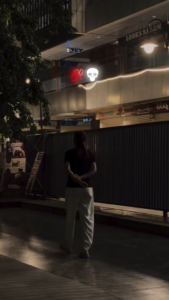
Take Screenshot ⬇️

Atmospheric Overlays
Sirf slow speed se cinematic feel complete nahi hoti; video mein realistic physics aur optics add karni padti hai:
- Natural Motion Blur: Fast-moving moments par natural blur add karne ke liye VN ke FX tab se Zoom Flash, Shake ya Motion Blur effect select karein aur use transition point par 0.2s duration ke liye lock karein.
- Atmospheric Dust / Film Grain: Video track ke upar ek subtle film grain overlay ya black cinematic borders (2.35:1 letterbox) add karein. Isse video mobile screen par ek premium widescreen film sequence jaisi appear hoti hai.
Fast Method vs Manual Speed Ramping Workflow
Parameter
VN Slow Motion Template
Manual Speed Curve Editing
Setup Time
Under 2 Minutes
15 to 25 Minutes
Technical Difficulty
Very Easy (Beginner-Friendly)
Intermediate (Requires Graph Sense)
Beat Synchronization
Pre-aligned with trending audio
Manually drop beat flags on waveforms
Custom Control
Fixed template sequence
Complete keyframe independence
Best Used For
Fast daily reels & viral trends
Portfolio projects & client work
Bonus Tip: Shutter Angle Emulation Aur Colour Grading Secret
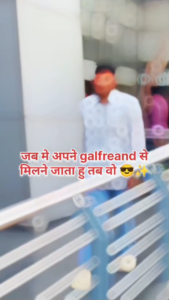
Take Screenshot ⬇️

Ek pro-level cinematic look pane ke liye speed ramped clip par yeh do tweaks apply karein:
- The S-Curve Colour Tone: VN ke Filter adjustment tab mein jayein. Contrast ko +8, Saturation ko -5, aur Shadows ko +6 karein. Isse harsh sunlight soften ho jati hai aur footage cinematic film stock jaisi dikhti hai.
- Reverse Snap Ramp: Video ke ending segment par direct slow motion chhodne ke bajaye, clip ke aakhri 0.3 seconds ko wapas 4x fast speed kar dein aur ek gentle bass drop sound effect (SFX) align karein. Ye sudden whip-back viewer ke mind mein satisfying visual closure create karta hai aur video ka loop transition bilkul seamless ban jata hai.
Instagram Upload Ke Liye Best Export Settings
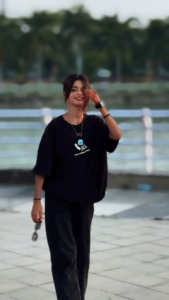
Take screenshot 👇

Bohot se creators ki video gallery mein crystal clear dikhti hai, lekin jaise hi Instagram par upload hoti hai, quality drop ho jaati hai aur compression artefacts aate hain. Isse bachne ke liye hamesha in parameters par render karein:
- Ending Watermark Removal: Rendering se pehle VN timeline ke end frame par jo default black title slide aati hai, us par tap karke Delete press karein taaki export 100% clean rahe.
- Resolution: 1080p (FHD) select karein. 4K upload karne par Instagram ka algorithm heavy compression apply karta hai, jabki 1080p native display format hota hai.
- Frame Rate: 60 FPS lock karein taaki slow motion curves smoothly render hon.
- Bitrate Setting: Bitrate ko Auto par chhodne ke bajaye Custom 16 Mbps se 18 Mbps par set karein. High bitrate fast motion aur slow frame transitions mein pixelation create nahi hone deta.
- Instagram App Setting: Instagram profile settings mein jakar Media Quality section open karein aur Upload at highest quality switch ko permanent ON rakhein.
Conclusion
Instagram Reels par stand out karne ke liye expensive equipment se zyada zaroori hai sahi visual pacing aur frame execution. VN slow motion templates naye content creators ke liye ek powerful shortcut hain jo ghanto ki manual speed graphing ko kuch hi clicks mein resolve kar dete hain. High frame rate shooting habits banayein, templates ko apni footage ke sath carefully fine-tune karein, aur regular practice se apne visual storytelling skills ko master karein!