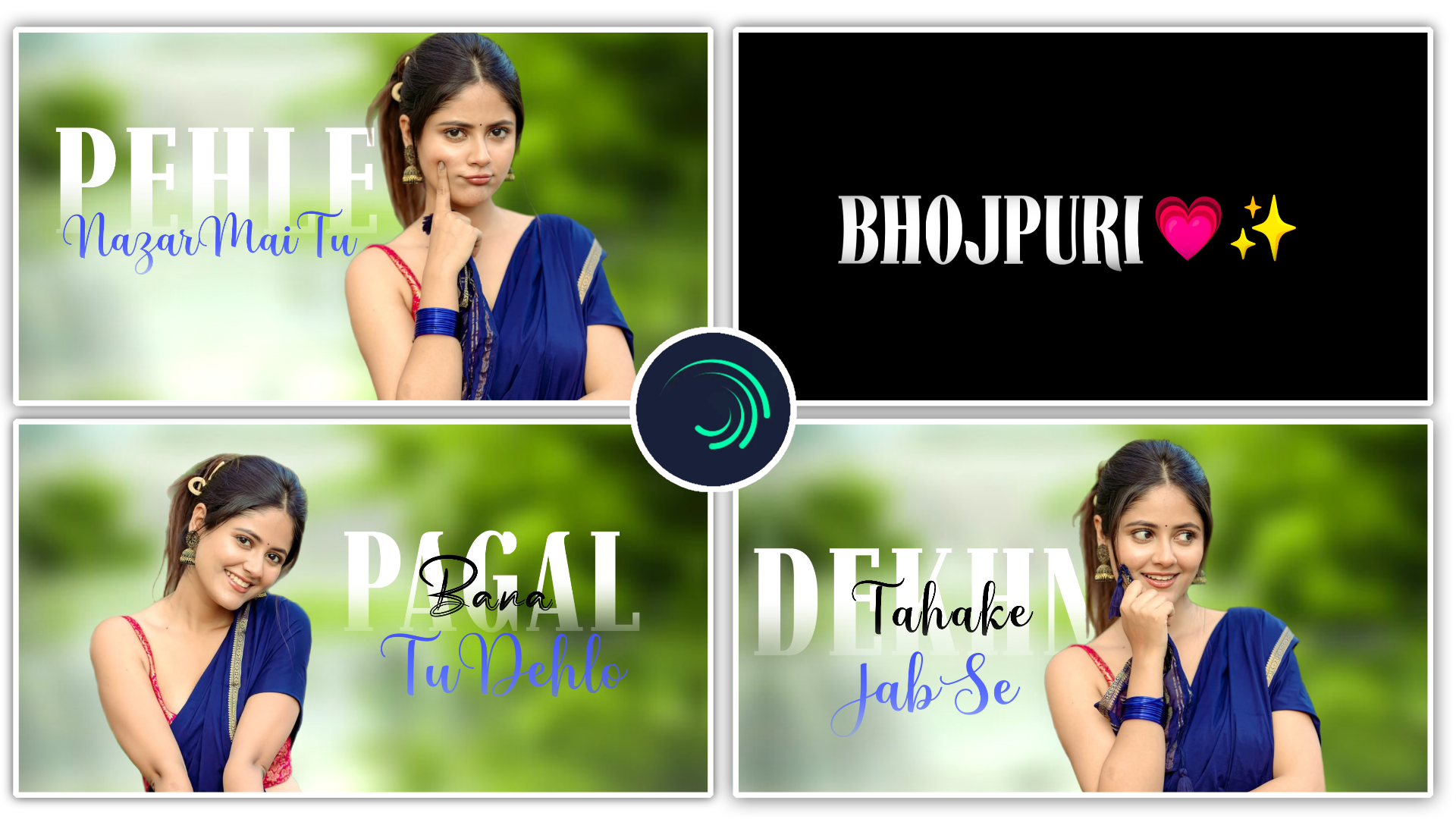
Full Project 👇 🎁
Namaskar dosto! Main ek professional video editor hoon aur is creative digital industry mein mujhe 7 saalo se zyada ka solid experience ho chuka hai. In saalo mein maine hazaron videos edit ki hain aur social media ke har naye trend ko kareeb se samjha hai. Agar aap bhi editing field mein interest rakhte hain, toh aapne mera YouTube channel “m4editorofficial” (jispar humari 13.6K subscribers ki active family hai) ya phir mera Instagram page “m4_editor_official” (jahan hum 145K followers strong hain) zaroor dekha hoga. Mera hamesha se yahi vision raha hai ki main apni real editing knowledge, trending techniques, aur practical industry guidance is website par bilkul free mein share karu, taaki har beginner zero se start karke ek genuine pro-level editor ban sake.
Alight Motion Se Amazing Edits Guide: Mobile Par Pro 3D Editing Aur Advanced Tricks
Aaj ke is tezi se badhte digital zamane mein, jahan har din hazaron nayi Instagram reels, YouTube shorts, aur cinematic vlogs upload ho rahe hain, apne content ko crowd se alag (stand out) karwana sabse bada challenge ban chuka hai. Agar aap dhyan se observe karein, toh jo videos viral hoti hain ya jin par sabse zyada audience retention (watch time) aata hai, unki visual appeal aur editing ekdum top-notch hoti hai. Ek boring raw video aur ek viral masterpiece ke beech ka akela difference ‘Editing’ hota hai.
Pehle ke time mein logo ka manna tha ki high-quality animations, smooth motion graphics, aur 3D edits sirf PC ke expensive aur heavy softwares (jaise Adobe After Effects ya Premiere Pro) par hi banaye ja sakte hain. Lekin advanced smartphone technology ne is poori game ko badal kar rakh diya hai. Aaj ke time mein, ‘Alight Motion’ jaisi revolutionary application ne mobile editors ko aisi superpowers de di hain jo kuch saalo pehle tak sirf ek sapna lagti thi.
Is a detailed, highly researched, aur SEO-friendly article mein, hum baat karenge ek complete “Alight Motion Se Amazing Edits Guide” ke baare mein. Hum specifically is topic par deep dive karenge ki Alight Motion Application Se 3D Video Editing Kaise kare, iske hidden professional hacks kya hain, aur aap apne normal se smartphone ka use karke kis tarah mind-blowing cinematic edits create kar sakte hain. Chaliye bina kisi deri ke is creative journey ko shuru karte hain!
Alight Motion Application Se 3D Video Editing Kaise Kare: Powerful Hacks & Techniques
Mobile editing community mein Alight Motion ko mobile ka ‘After Effects’ kaha jata hai. Aisa isliye kyunki isme layer-based editing aur manual keyframe animation ka jo advanced control milta hai, wo kisi aur free mobile app mein nahi hai. Agar aap apne 2D edits ko 3D space mein le jana chahte hain, toh niche diye gaye industry-level hacks aapke bahut kaam aayenge.
Hack 1: 3D Z-Axis Aur Spatial Depth Ko Master Karna
Mobile screens normally 2D hoti hain (yahan sirf up-down aur left-right movement hoti hai). Lekin agar aapko apni video mein ek real 3D depth ya illusion create karna hai, toh aapko ‘Z-Axis’ ka concept completely samajhna padega. Z-axis ka sidha sa matlab hai apne elements ko screen ke andar (peeche ki taraf) ya screen se bahar (aage ki taraf) push karna.
- Detailed Explanation: Alight Motion mein jab aap kisi bhi layer (jaise koi image, shape ya text) ko timeline par select karte hain aur ‘Move & Transform’ tool ko open karte hain, toh right side mein aapko ek chota sa 3D cube ka icon dikhai deta hai. Jab aap is icon par tap karte hain, tab aapke project mein Z-axis activate ho jati hai. Ek realistic 3D environment banane ke liye, aapko layer-wise kaam karna hota hai. Apne background image ko Z-axis slider ki madad se bahut peeche (negative value, jaise -500 ya -1000) push karna hota hai, aur apne main character ya text ko aage (positive value, jaise +200) rakhna hota hai. Isse automatically ek artificial depth of field create hoti hai.
- Beginner-Friendly Tip: Hamesha scene banate waqt multiple layers ka use karein. Sirf background aur subject mat rakhein. Ek layer background ke liye, ek mid-ground ke liye (jaise kuch flying particles, dust, ya smoke overlays), aur ek foreground (aapka main subject). In teeno ko alag-alag Z-values par set karein. Jab aap inme thodi si bhi movement denge, toh 3D effect perfectly camera mein capture hoga.
Hack 2: Null Objects Aur Cinematic 3D Camera Movement Setup
Ek static (ruka hua) 3D scene thoda boring lagta hai. Viewer ka attention grab karne ke liye scene mein dynamic camera movement hona bahut zaroori hai. Lekin agar aapke paas 10 ya 15 alag-alag layers hain, toh sabko ek sath move karna bahut mushkil aur confusing ho jata hai. Yahan Alight Motion ki sabse powerful ‘Camera’ aur ‘Null Object’ trick kaam aati hai.
- Detailed Explanation: Alight Motion mein aap ‘+’ icon par click karke ‘Object’ section se ek virtual ‘Camera’ add kar sakte hain. Lekin is the default camera ko directly animate karna thoda tricky hota hai. Is problem ko solve karne ke liye hum ek ‘Null Layer’ (jo ki ek invisible, khali controlling layer hoti hai) create karte hain. Phir hum apne Camera layer ki settings mein jaa kar use is Null layer ke sath ‘Parent’ (link) kar dete hain. Ab iska sabse bada fayda yeh hai ki jab hum sirf us ek Null layer ko timeline par move, pan, tilt ya zoom karte hain, toh humara pura ka pura 3D scene smoothly aur perfectly ek sath move hota hai.
- Beginner-Friendly Tip: Agar aap gaming montages, AMV (Anime Music Videos), ya beat-sync edits banate hain jahan screen tezi se zoom in ya zoom out hoti hai (jise dynamic scaling kehte hain), wahan yahi Null object trick use hoti hai. Aapko har clip par alag se zoom effect lagane ki zaroorat nahi hai, bas Null layer par keyframes lagayein aur apne poore edit ko ek cinematic look dein.
Hack 3: Realistic Parallax Effect Ke Sath 3D Illusion Banana
Agar aapne top pro creators ki reels ya films dekhi hain, toh aapne notice kiya hoga ki jab camera aage badhta hai, toh background slowly peeche chhut ta hai, jabki aage ka object tezi se bada hokar screen ke paas aata hai. Ise visual field mein ‘Parallax Effect’ kehte hain, aur yeh 3D edits ki asli jaan hai.
- Detailed Explanation: Parallax effect real duniya ki physics aur optics par based hai. Example ke liye, jab aap chalte hue train se bahar dekhte hain, toh paas ke bijli ke khambe tezi se peeche jaate hain, lekin door ke pahaad dreere-dheere move karte hain. Alight Motion mein is the same effect ko achieve karne ke liye, apni subject layer (jaise aapki cutout PNG photo) ko camera ke bahut paas rakhein (scale up karke) aur background ko Z-axis mein bahut door bhej dein. Phir jab aap upar bataye gaye Null Camera ko Z-axis mein aage ki taraf animate karenge, toh bina kisi extra plugin ke yeh mind-blowing parallax effect automatically generate ho jayega.
- Beginner-Friendly Tip: Is effect ko aur zyada high-budget aur realistic banane ke liye, apne sabse peeche wale background layer par thoda sa ‘Gaussian Blur’ ya ‘Lens Blur’ effect apply karein. Isse mehnge DSLR camera jaisi depth of field aayegi aur viewer ka poora focus aapke sharp aur clear main subject par hi rahega.
Hack 4: Text Aur Shapes Ke Liye 3D Extrusion Aur Lighting Magic
Sirf flat (kagaz jaisi) layers ko aage-peeche rakhne se kaam nahi chalta; objects khud bhi 3D (motai aur volume wale) lagne chahiye. Agar aap apne title text, channel logo ya kisi shape ko real 3D block ka look dena chahte hain, toh ‘Extrusion’ aur ‘Lighting’ ka use karna padega.
- Detailed Explanation: Alight Motion mein normal text likhne ke baad, text layer ko select karein aur ‘Effects’ panel mein jayein. Wahan ‘3D’ category ke andar ‘Extrude’ ya ‘3D Shape’ effect search karke apply karein. Ise apply karte hi aapka flat 2D text ek solid, mote block mein convert ban jayega. Lekin abhi yeh thoda fake lagega. Iske baad asli jaadu ‘Lighting’ add karne se hota hai. Aapko ‘Directional Light’ effect apply karna padega jo object par light aur shadow banata hai.
- Beginner-Friendly Tip: Directional Light ke angle ko 45 degrees par set karein taaki text ke ek side par bright chamak (highlight) aaye aur dusri taraf dark shadow (parchai) bane. Iske sath thoda sa ‘Bevel’ effect add karein. Isse text completely metallic, glass, ya 3D glowing object jaisa premium feel dega. Yeh technique stylish YouTube intro aur outro videos banane ke liye sabse best hai.
Hack 5: Custom Easing Graphs Se Butter Smooth Animation
Koi bhi 3D edit tab tak professional nahi lagta jab tak uski object movement natural aur smooth na ho. Linear keyframes (jahan animation ek hi fixed speed se start aur end hoti hai bina raste mein badle) bahut hi robotic aur saste lagte hain.
- Detailed Explanation: Jab aap timeline par do keyframes add karte hain (ek starting point aur ek ending point), toh unke beech chalne ki speed ko control karne ke liye ‘Graphs’ (ya Curve tool) ka use kiya jata hai. Alight Motion mein keyframes ke beech curve editor ko open karein. Agar aap chahte hain ki movement tezi se shuru ho aur end mein slowly smooth tarike se ruke, toh graph ko upper side curve (Ease Out) par set karein.
- Beginner-Friendly Tip: Shuruwat mein manual curves samajhne mein aur draw karne mein thoda time lag sakta hai. Isliye initially Alight Motion ke diye gaye default presets (Ease In, Ease Out, Ease In-Out) ka use karein. In buttons ko tap karte hi aapka text ya camera animation instantly bilkul butter jaisa smooth aur natural ho jayega.
Bonus Tip: XML Presets Aur Workflow Optimisation Trick
Professional aur highly paid editors hamesha apna time bachate hain taaki wo nai creativity aur ideas par zyada focus kar sakein. Aam editor aur pro editor mein ek yahi bada difference hai. Yahan aapke liye ek smart workflow trick hai:
- Smart Editing Workflow: Alight Motion ka sabse bada advantage aur hidden feature uske ‘XML Project Files’ hain. Agar aapne ghanto mehnat karke ek perfect 3D text animation, ek smooth shake effect ya ek kamaal ka Colour Correction (CC) filter banaya hai, toh use kabhi bhi delete na karein. Use hamesha apni library mein save karke rakhein. Aap use as an XML link export kar sakte hain. Next time jab aap koi naya project shuru karein, toh us poore complex effect ko scratch (zero) se wapis banane ki bajaye, bas wo preset import karein aur apne naye clips par 1-click mein apply kar dein. Is ek choti si aadat se aapki editing speed 5X (paanch guna) fast ho jayegi!
Common Mistakes Beginners Should Avoid
Editing seekhte waqt har kisi se galtiyan hoti hain, lekin kuch aisi common aur badi mistakes hain jo aapki video ki overall quality aur professional look ko drastically gira sakti hain:
- Over-Editing Aur Visual Cluttering: Naye editors aksar kya karte hain ki apni ek hi video mein har tarah ke available effects, glitch transitions, aur glowing lines ek sath bhar dete hain. Unhe lagta hai isse video cool dikhegi. Lekin yaad rakhein, editing mein golden rule hai ‘Less is More’. Apne 3D edits ko hamesha clean aur point par focus mein rakhein.
- Motion Blur Ko Ignore Karna: Jab real life mein koi bhi cheez tezi se move hoti hai (jaise aapka haath), toh usme naturally ek blur (dhundhlapan) aata hai. Alight Motion mein text ya objects ko tezi se animate karne ke baad agar aap ‘Motion Blur’ effect turn on nahi karte, toh lagta hai jaise elements ruk-ruk kar (choppy) chal rahe hain. Hamesha motion blur apply karein.
- Incorrect Project Aspect Ratios: Agar aap Instagram Reels ya YouTube Shorts ke liye edit kar rahe hain aur aapne galti se project 16:9 (Landscape YouTube format) ka banaya hai, toh upload karte time video screen par fit nahi hogi aur upar-niche ajeeb se black bars aayenge. Hamesha apna project start karne se pehle aspect ratio (Reels ke liye 9:16) perfectly set karein.
Verified Information: Social Media Ke Liye Official Export & Encoding Settings
Jab aap itni dino ki mehnat karke ek perfect 3D edit banate hain, toh use top quality mein phone me save karna zaroori hai. Adhiktar creators ki shikayat rehti hai ki Instagram ya YouTube par upload karne ke baad video ki quality gir jati hai. Iska karan galat export settings hoti hain. Yahan verified aur official standard export settings di gayi hain taaki social media ke compression algorithms aapki video quality ko kharab na kar sakein:
- Resolution & Framerate: Apne high-quality project ko hamesha 1080p (Full HD) ya 4K resolution aur 60 FPS (Frames Per Second) par hi export karein. 60 FPS aapke complex 3D animations aur camera movements ko ultra-smooth maintain rakhta hai.
- Video Codec Selection: Settings mein H.264 (AVC) ka istemaal karein. Yeh duniya bhar mein universally supported aur sabse safe codec hai jo colour wash out hone nahi deta.
- Video Bitrate (The Game Changer): Yeh sabse crucial setting hai jise log ignore kar dete hain. 1080p 60 fps video ke liye, export slider mein bitrate ko 15 Mbps se 20 Mbps ke beech fix set karein. Is range mein export karne se video upload ke baad server compression sehti hai aur screen ke pixels fatenge nahi (pixelation 100% prevent hota hai).
- Audio Settings: Video ki tarah audio bhi important hai. Audio format AAC hona chahiye aur bitrate slider ko max yani kam se kam 256 kbps se 320 kbps par rakhein, taaki aapke background scores aur sound design bilkul punchy sunein.
Conclusion
Mobile editing sirf ek technical software chalane ka game nahi hai, yeh aapki imagination, storytelling aur creativity ka ek ultimate digital canvas hai! Alight Motion ke in upar bataye gaye powerful 3D tools, layering concepts aur verified export settings ko aaj hi practically practice karna shuru karein. Shuru mein keyframes aur Z-axis thode technical aur ajeeb lag sakte hain, par thode se patience aur daily practice ke sath aap itni professional masterpiece videos banayenge ki dekhne wale hairaan reh jayenge. Naye ideas ke sath experiment karte rahein, aur apni editing skills ko roz next level par le jate rahein. Happy Editing!
Preset 👇
Xml File 👇
Song 👇
Scan App Name Google Lens 👇 🎁