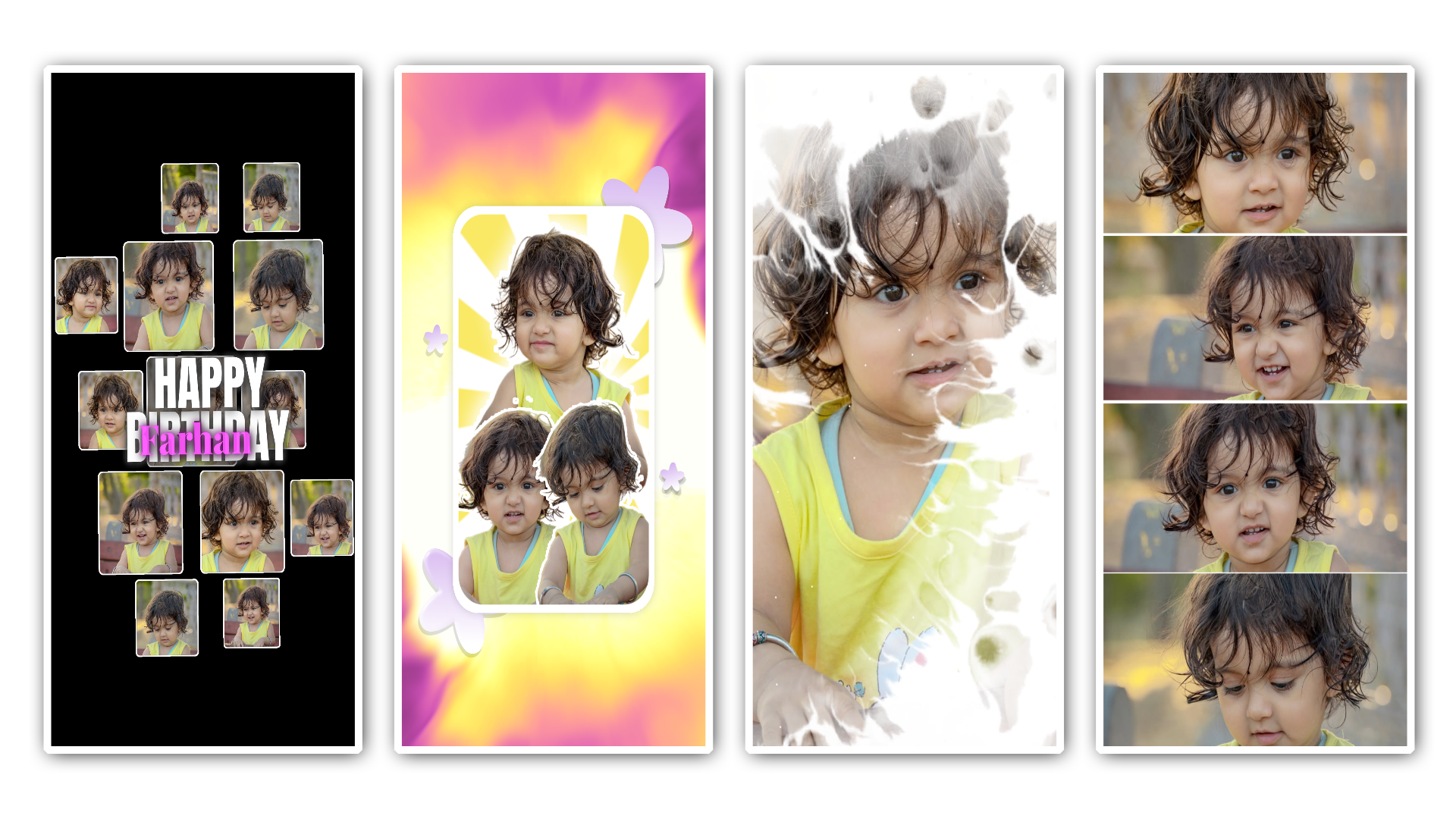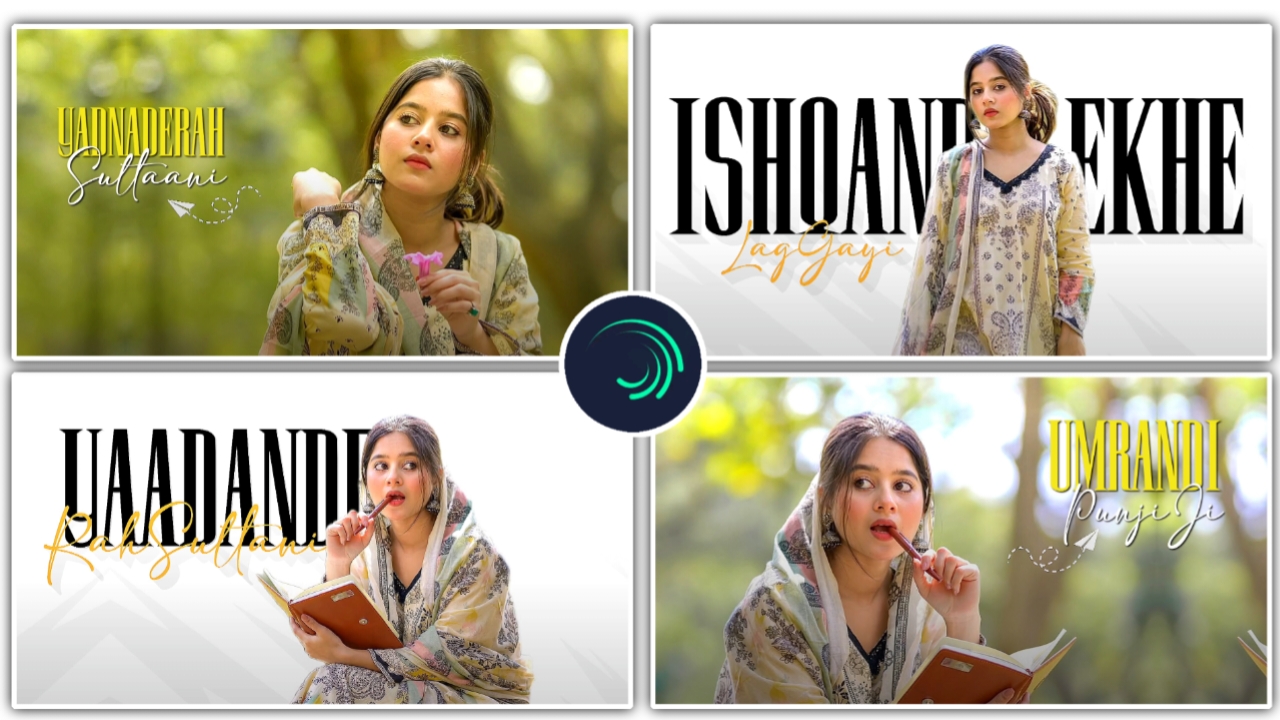
10 Capcut Template 👇
Hello dosto! Main ek professional video aur photo editor hoon. Pichle 7+ saalon se main editing industry ki gehraiyon par kaam kar raha hoon aur naye creative trends ko lagataar explore kar raha hoon. Agar aap social media par active hain, toh shayad aap mere YouTube channel “m4editorofficial” (jahan humari 13.6K subscribers ki amazing family hai) ya mere Instagram page “m4_editor_official” (145K followers) se zaroor jude honge. Mera mission hamesha se bilkul clear raha hai—is website ke zariye main apna saara practical experience, trending editing secrets, aur premium knowledge bilkul free mein share karta hoon. Main chahta hoon ki ek aam beginner bhi apne ghar baithe genuine aur advanced editing skills seekh sake aur apne content ko viral bana sake.
Pro-Level Aesthetics: Advanced Photo Editing Tips for Beginners
Aaj ke digital aur AI ke zamane mein, ek normal tasveer ko click karna bahut aasan hai, lekin ek aam photo ko “Cinematic Masterpiece” mein badalna ek art hai. Zyadatar beginners sirf Instagram ya Snapchat ke filters lagakar sochte hain ki editing ho gayi. Lekin ek professional editor janta hai ki asli jaadu filters mein nahi, balki manual tools mein chhipa hota hai.
Agar aap basic brightness aur contrast se aage badhkar apni photos ko ek high-end, premium look dena chahte hain, toh aap bilkul sahi article padh rahe hain. Aaj main aapke sath aisi Advanced Photo Editing Tips for Beginners share karne wala hoon, jo sunne mein technical lag sakti hain, lekin maine unhe itna simple aur practical bana diya hai ki koi bhi beginner inhein aasani se samajh kar apply kar sakta hai. Toh chaliye, apne editing game ko next level par le chalte hain!
1. RAW Format Ki Power Ko Unlock Karein
Agar aap sach mein advance editing seekhna chahte hain, toh JPEG format ko hamesha ke liye bhool jaiye. Ek professional edit ki shuruwaat hamesha RAW file se hoti hai.
RAW kyon zaroori hai?
JPEG ek compressed file hoti hai jismein camera extra details ko delete kar deta hai. Lekin ek RAW image mein lens dwara capture ki gayi 100% light, shadow, aur color details save rehti hain. Agar aapki photo bahut zyada dark (underexposed) aayi hai, toh RAW format mein aap bina photo ki quality (pixels) kharab kiye, uske andhere hisson se bhi details nikal sakte hain.
Pro Tip: Apne smartphone ya DSLR ki camera settings mein jayen aur format ko “RAW” ya “PRO” mode par set karein. Yeh ek akela step aapki editing me 50% tak clarity badha dega.
2. Tone Curve Ka Jaadu (Beginners Ke Liye Sabse Powerful Tool)
Zyadatar beginners Lightroom ya Snapseed mein “Tone Curve” (ek graph jaisi seedhi line) ko dekh kar ghabra jate hain aur ise chhod dete hain. Lekin yakeen maniye, Tone Curve lighting aur contrast control karne ka sabse advanced aur behtareen tool hai.
Tone Curve ko aasani se kaise samjhein?
Curve graph mein neeche ka hissa Shadows (andhera) hota hai, beech ka hissa Midtones (normal light), aur upar ka hissa Highlights (sabse zyada roshni) hota hai.
The Cinematic S-Curve: Apne curve ki line par teen (3) dots (points) banayein. Upar wale dot ko thoda sa upar khinchein (highlights badhane ke liye) aur neeche wale dot ko thoda sa neeche khinchein (shadows dark karne ke liye).
Faded/Vintage Look: Agar aapko moody aur faded look chahiye, toh curve ke sabse neeche wale point (left corner) ko pakad kar thoda sa upar utha dein. Isse photo ke dark areas mein ek premium greyish fade aa jata hai, jo aaj kal Instagram par bahut trending hai.
3. Color Grading: HSL aur Split Toning Ko Master Karein
Sirf saturation badha dene se photo acchi nahi lagti. Advanced editing mein hum colors ko selectively control karte hain jise Color Grading kaha jata hai.
HSL Panel (Hue, Saturation, Luminance)
HSL tool aapko photo ke har ek single color par control deta hai.
- Hue: Color ka nature badalta hai (Jaise green ghas ko autumn (patjhad) ke yellow/orange look mein badalna).
- Saturation: Color kitna gaadha ya feeka hoga.
- Luminance: Uss specific color ke andar kitni light hogi.
- Practical Example: Agar face ka color dark lag raha hai, toh Orange color ki Luminance badha dein aur Saturation thodi kam kar dein. Aapki skin turant fair aur glowing lagne lagegi bina kisi artificial filter ke.
Color Wheels (Split Toning)
Yeh cinematic look ka sabse bada secret hai. Color grading wheels aapko Shadows (andhere hisson) aur Highlights (roshni wale hisson) mein alag-alag colors dalne ki power dete hain. Hollywood movies mein aksar shadows mein “Teal” (blue) aur highlights mein “Orange” tone dala jata hai (Teal & Orange look), jisse photo bahut hi eye-catching lagti hai.

Notes
Template work karega but Usse pehle VPN Connect kar Lena tabhi template work karega

Important
Template work karega but Usse pehle VPN Connect kar Lena tabhi template work karega
Tu Nazar Mai Hai Kisi Our Ki Instagram Viral Capcut Template 👇

Imprtant
Template work karega but Usse pehle VPN Connect kar Lena tabhi template work karega
Slowly Slowly Instagram Viral Capcut Template 👇
Important👇
Template work karega but Usse pehle VPN Connect kar Lena tabhi template work karega
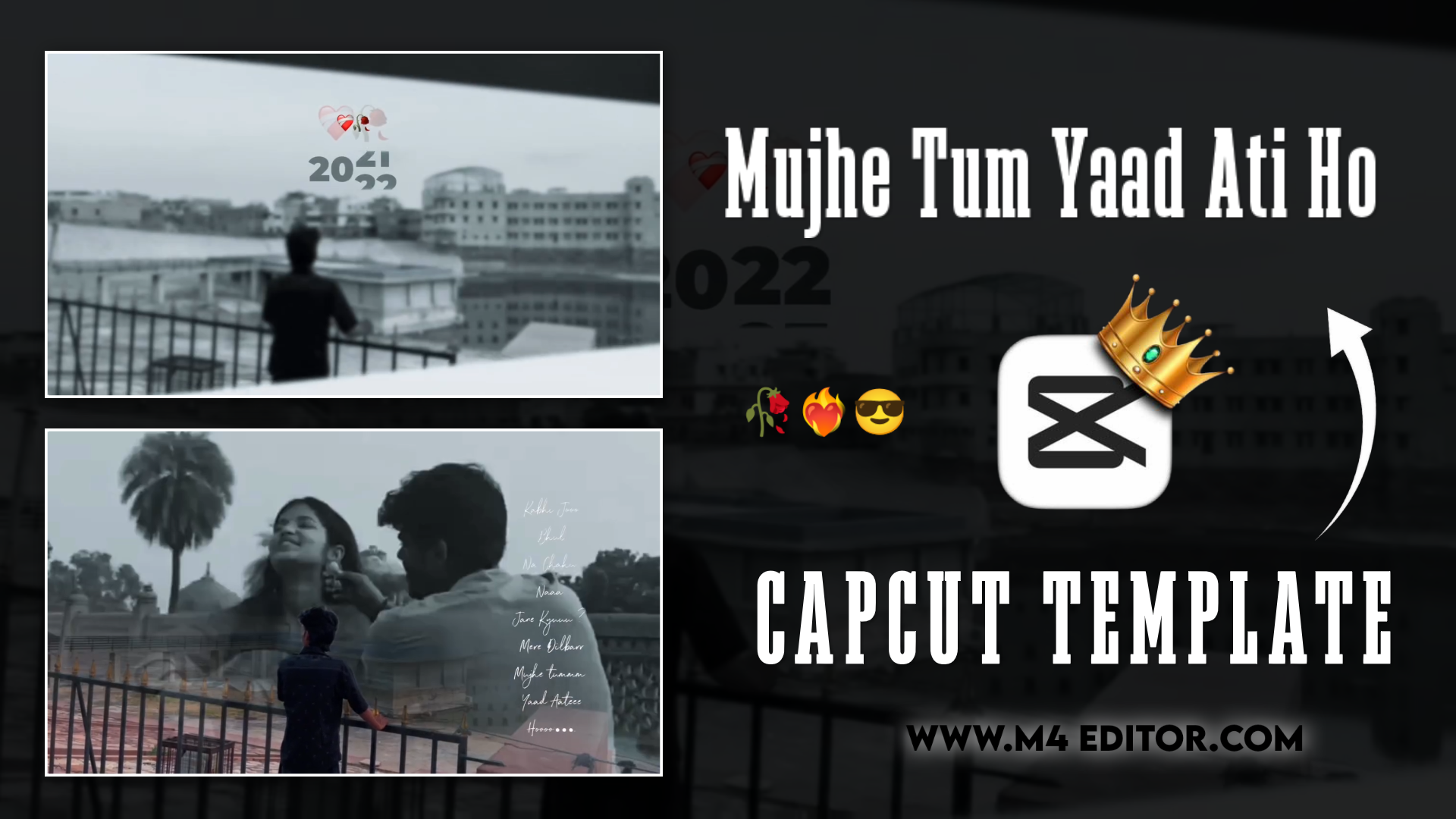
Tokyo Ghoul Instagram Viral Capcut Template 👇
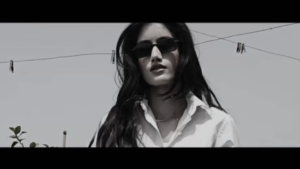
Important 👇
Template Use karne se pehle Aap Apne Mobile mein VPN Connect kar Lena tabhi template work karega
4. Advanced Masking: AI Se Photo Mein Depth Banayein
Pehle ke time mein ek subject ko background se alag karna bahut mushkil hota tha, lekin ab AI (Artificial Intelligence) ne ise baccho ka khel bana diya hai. Masking ka matlab hai photo ke kisi ek specific hisse ko select karke sirf usko edit karna.
- Select Subject: Lightroom ya aise hi advanced apps mein ‘Select Subject’ par click karein. AI khud aapke (ya main object ke) aas-paas ek mask bana dega. Ab aap background ko chhedhe bina sirf apne aap ko sharp aur bright kar sakte hain.
- Linear/Radial Gradient: Agar aap photo mein ek nakli ‘sunlight’ ya dhoop ka effect dalna chahte hain, toh ek Radial mask banayein (circle shape mein), aur uska exposure aur warm temperature badha dein. Is technique se aap kisi bhi dull photo mein ek magical golden hour effect create kar sakte hain.
5. Healing Brush Aur Clone Stamp (Distractions Ko Hatayein)
Aapne ek perfect photo click ki, lekin background mein koi kachre ka dabba (dustbin) ya koi anjaan insaan aa gaya. Ek beginner is photo ko delete kar dega, lekin ek pro editor Healing Brush ya Clone Stamp tool ka use karega.
- Healing Brush: Is tool ko select karke kisi bhi choti unwanted cheez (jaise face ke pimples, ya deewar ka daag) par paint karein. AI automatically aas-paas ke pixels ko copy karke us daag ko gayab kar dega.
- Beginner Tip: Healing tool ka size hamesha daag ke size se thoda sa bada rakhein. Apni photos se distract karne wali har cheez ko remove karna ek clean aur professional aesthetic ki pehchan hai.
6. Dodge aur Burn Technique (Paint With Light)
Yeh technique professional magazine editors use karte hain, aur ise samajhna bahut aasan hai. Dodge ka matlab hota hai kisi hisse ko bright (roshan) karna, aur Burn ka matlab hota hai kisi hisse ko dark karna.
Apne editing app mein brush tool select karein.
- Dodge (Brighten): Aankhon ke andar, hair ke highlights par, ya jewelry par brush fer kar thoda exposure badhayein. Isse features pop out hote hain.
- Burn (Darken): Photo ke charo kono (edges) ko halka-halka dark karein. Ise hum manually vignette add karna bhi kehte hain. Aisa karne se dekhne wale ki nazar automatically sidha aapke main subject par jati hai.
7. Ek Professional Editing Workflow Maintain Karein
Koi bhi advanced editor random tools use nahi karta. Unka ek fixed step-by-step process hota hai. Is workflow ko apni aadat bana lein:
- Cropping & Geometry: Pehle photo ko seedha (straighten) karein aur Rule of Thirds ke hisaab se crop karein.
- Light Correction: Tone curve aur exposure sliders se base light theek karein.
- Color Balance: White balance (Temperature) natural set karein.
- Color Grading: HSL aur Color wheels se apni pasand ka mood/aesthetic banayein.
- Masking: Subject ko background se alag highlight karein.
- Retouching: Healing brush se unwanted cheezein hatayein aur end mein sharpness badhayein.
Bonus Tip: Presets Ko Use Karein, Par Apne Dimag Se
Bahut se beginners mehnge presets download karte hain, unhe apply karte hain, aur disappoint ho jate hain kyonki result accha nahi aata.
Mera Secret Rule: Preset ek ‘magic pill’ nahi hai, balki ek ‘starting point’ hai. Kisi bhi preset ko apply karne ke baad hamesha uski Opacity ko 50-60% par set karein. Uske baad apne White Balance aur Exposure ko manual theek karein, kyonki us preset banane wale ki photo ki light aur aapki photo ki light bilkul alag hai. Sabse best practice yeh hai ki aap khud apni color grading karein aur apna khud ka “Custom Preset” save karein, jisse aapki feed ka ek unique style ban sake.
Conclusion
Dosto, editing tools ka istemal karna aasan hai, lekin unhe sahi jagah aur sahi matra (amount) mein use karna hi ek sacche editor ki pehchan hai. Upar di gayi in Advanced Photo Editing Tips for Beginners ko jab aap regularly practice karenge, toh Tone Curve ya HSL jaise tools aapko mushkil nahi, balki mazedar lagne lagenge. Hamesha dhyaan rakhein ki sabse best edit wo hota hai jo highly detailed ho, par dekhne mein bilkul natural lage. Aaj hi in techniques ko apni gallery ki kisi photo par try karein aur result dekh kar aap khud hairaan reh jayenge. Keep practicing and keep elevating your content!