About the Author:
Mera naam MD Maqsood hai aur main pichhle 7 saalon se video editing industry mein actively kaam kar raha hoon. Long-form video productions se lekar short-form viral storytelling tak, maine visual workflows ko ground level se evolve hote dekha hai. Apne YouTube channel m4editorofficial (13.6K+ subscribers) aur Instagram community m4_editor_official (145K+ followers) ke zariye main naye creators ke sath practical timeline techniques, raw breakdown strategies aur industry-level editing hacks share karta hoon, taaki har beginner bina kisi expensive course ke professional level ki video editing master kar sake.
Flow AI vs Traditional Video Editing: Modern Creators Ke Liye Complete Workflow Guide M4 162
Digital video production ki duniya pichhle kuch saalon mein bohot tezi se badli hai. Pehle jahan ek 60-second ki reel ya 10-minute ka YouTube video edit karne ke liye ghanto timeline par manually scrubbing, trimming aur audio sync karni padti thi, wahin aaj Flow AI jaise automated systems timelines ko secondon mein assemble karne ka solution de rahe hain.
Doosri taraf, Traditional Video Editing software jaise Premiere Pro, DaVinci Resolve aur Final Cut Pro aaj bhi har high-end filmmaker aur agency ka primary tool bane hue hain. Inka frame-level precision aur creative control unmatched hai.
Aise mein har naye creator aur freelance video editor ke dimaag mein ek genuine sawal aata hai: Kya Flow AI traditional video editing software ko replace kar dega, ya in dono ka combination hi video production ka asli future hai?
Is pure guide mein hum bina kisi complex technical jargon ke, basic timeline reality ke sath samjhenge ki aapke content aur growth ke liye kaunsa workflow best hai.
Step 1: Flow AI Aur Traditional Editing Ka Core Concept
Kisi bhi software ko select karne se pehle dono ke basic functioning model ko samajhna zaroori hai.
Flow AI Kaise Kaam Karta Hai?
Flow AI machine learning aur context algorithms par run hota hai. Iska main mission hota hai mechanical aur boring manual tasks ko automate karna. Jaise hi aap apni raw video files import karte hain, yeh automatic silence trimming, multi-language speech-to-text captions, scene change detection aur basic background noise clean-up jaise steps ko bina timeline touch kiye solve kar deta hai.
Traditional Video Editing Kaise Kaam Karti Hai?
Traditional editing tools aapko ekdum blank digital canvas provide karte hain. Yahan computer apne dimaag se koi cut nahi lagata. Timeline ke har single frame, audio crossfade, keyframe animation aur colour wheel par sirf aur sirf editor ka complete manual control hota hai. Yeh method time leti hai, par aapko 100% customised visual output deti hai.
Step 2: Rough Cut Assembly Aur Trimming Speed
Kisi bhi video project ka sabse pehla aur lamba stage rough cut assembly hota hai.
- Flow AI Workflow: Talking head videos, podcasts aur webinars mein jahan speaker beech-beech mein rukta hai ya fumbles karta hai, Flow AI text-based editing provide karta hai. Aap transcript se words delete karte hain aur timeline se video cut ho jati hai. Jo kaam karne mein pehle 2 se 3 ghante lagte the, wo 10 minute mein complete ho jata hai.
- Traditional Workflow: Editor ko 1x ya 2x speed par continuous footage sunni padti hai, rhythm dekhna padta hai aur razor tool se cuts lagane padte hain. Isme time bohot lagta hai, lekin editor yeh decide kar pata hai ki emotional silence kahan hold karna hai aur fast cut kahan lagana hai.
Beginner Practical Tip:
Jab bhi aapke paas bulk footage ya long interview ho, rough cuts aur dead gaps nikalne ke liye AI tools ka use karein. Raw assembly wahan se nikal kar project ko final cut ke liye traditional timeline par shift karein.
Step 3: Creative Control Aur Custom Animation
Cut lagane ke baad video ko engaging banane ke liye visual styling ki zaroorat hoti hai.
- Flow AI Ke Limitations: AI tools hamesha pre-built rules aur algorithms par behave karte hain. Agar aapko koi specific storytelling transition chahiye, jaise kisi visual object ke motion se next scene reveal karna, toh AI templates wahan fail ho jate hain. AI wahi create kar sakta hai jo uske system mein pre-programmed hai.
- Traditional Editing Ki Strength: Premiere Pro ya DaVinci Resolve mein aap Graph Editor open karke speed ramps ki curves ko manually adjust kar sakte hain. Aap frame-by-frame manual masking, 3D camera tracking aur custom visual pacing de sakte hain jo viewer ke retention ko seedhe control karti hai.
Beginner Practical Tip:
Har clip ke transition par blindly automatic preset mat lagayein. Action scenes mein hard jump cuts better lagte hain, jabki serious narrative mein cross dissolve ya simple J-cut zyada natural feel deta hai.
Step 4: Audio Engineering Aur Sound Design
Visuals se zyada video ki quality viewer audio se judge karta hai. Agar audio kharab hai, toh viewer turant video drop kar deta hai.
- Flow AI Audio Features: Voice isolation aur background hum removal mein AI bohot power-packed hai. Phone mic se record ki gayi audio se fan ka sound, traffic aur room echo yeh single click mein clean kar deta hai.
- Traditional Audio Design: Cinema-level ya high-retention storytelling mein background sound effects (SFX), deep bass drops, risers aur Foley (footsteps, paper movement) ki zaroorat hoti hai. Traditional software mein aap alag-alag audio tracks par stereo panning aur parametric EQ set karke sound ko ek 3D spatial experience de sakte hain.
Beginner Practical Tip:
Auto-ducking feature set karte waqt music ka volume voice ke aane par -18dB se -22dB tak drop hona chahiye. Isse background music speaker ki voice ko drown nahi karega aur cut sudden nahi lagega.
Step 5: Colour Grading Aur Visual Depth
Lighting aur scene colours video ka mood tay karte hain.
- Flow AI Auto-Color: AI algorithms pure scene ki average brightness aur contrast ko analyse karke standard Rec.709 colour balance apply kar dete hain. Clean lighting wali videos ke liye yeh theek hai, lekin dark ya mixed-light shoots mein yeh skin tones ko unnaturally orange ya dull bana deta hai.
- Traditional Colour Grading: DaVinci Resolve jaise software mein aap Log footage ko specific input colour space mein manually convert karte hain. Shadows, Midtones aur Highlights ko alag-alag wheels se balance karke aap cinematic colour palette achieve karte hain jo raw clip ko high-budget look deta hai.
Step 6: Hardware Requirements Aur System Performance
Aapka editing system kitna capable hai, yeh selection mein bada role play karta hai.
- Flow AI Ki Low Hardware Demand: AI editing tools mostly cloud servers par render hote hain. Iska matlab yeh hai ki agar aapke paas high-end gaming PC ya Apple Silicon Mac nahi bhi hai, tab bhi ek normal laptop ya basic office PC par aap bina lag ke AI features access kar sakte hain.
- Traditional Software Ki Heavy Machine Demand: 4K video editing, complex fusion effects aur multiple video tracks handle karne ke liye traditional NLEs ko powerful multi-core CPU, dedicated GPU aur fast SSD storage ki zaroorat padti hai. Budget system par heavy 4K editing freeze aur crash cause karti hai.
Beginner Practical Tip:
Agar aapka computer traditional software par video scrub karte waqt atak raha hai, toh editing start karne se pehle project mein ProRes Proxy ya DNxHR Proxy files create kar lein (resolution 720p par lock rakhein). Rendering ke time main file automatically use ho jayegi aur timeline smooth chalegi.
Step 7: The Hybrid Editing Formula (Tested Industry Workflow)
Smart editors Flow AI aur Traditional Editing ke beech debate nahi karte, balki dono ko ek single pipeline mein integrate karte hain.
- Stage 1 (Raw Ingestion): Apni raw footage ko Flow AI software mein load karein. Automatic silence detection run karein aur unwanted silent parts ko bulk-trim kar lein.
- Stage 2 (Timeline Export): AI tool se XML ya EDL file export karein aur use apne traditional editor (jaise Premiere Pro ya DaVinci) mein open karein.
- Stage 3 (Creative Storytelling): Cuts ke beech 2 se 3 frames ka natural breathing room add karein. Manual sound effects, relevant B-rolls aur graphic pop-ups timeline par manually align karein.
- Stage 4 (Final Polish & Export): Traditional editor ke colour wheels se skin tones fix karein, audio levels ko -14 LUFS standard par match karein aur crisp high-bitrate render karein.
Bonus Tip: Custom Master Presets Se Timeline Speed 2x Karein
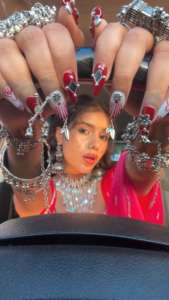
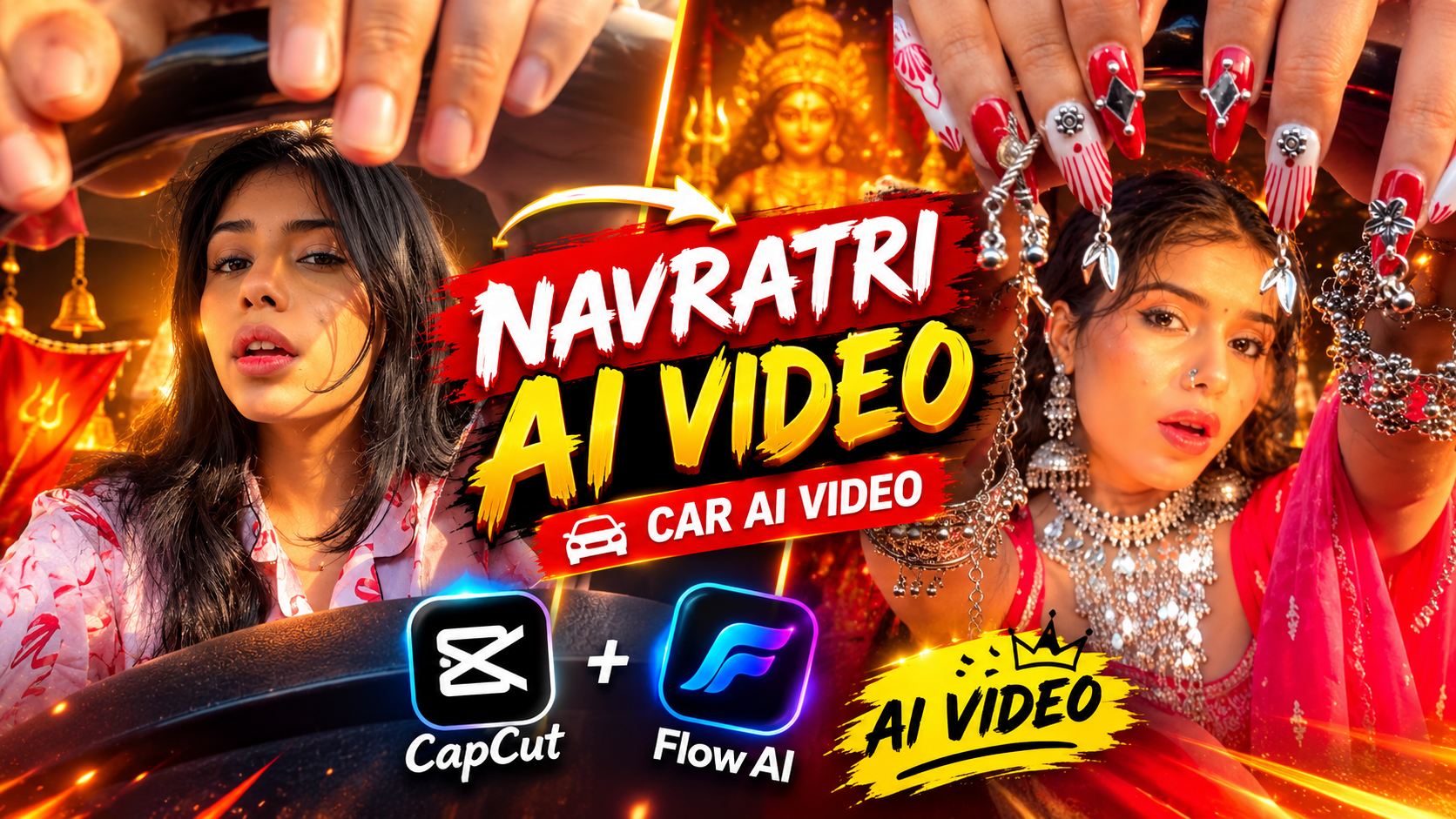
Here is a detailed AI video generation prompt designed to recreate the style, transformation, and festive aesthetic of the video. Master Text-to-Video Prompt > Prompt: A vertical 9:16 cinematic video set inside the driver's seat of a car during golden hour. In the first frame, a young South Asian woman with long dark hair is dressed in casual pink attire with natural hands, framing the steering wheel. On a sharp audio beat drop, a seamless transformation jump-cut occurs. She instantly transitions into a gorgeous festive look wearing a vibrant red traditional ethnic outfit, heavy oxidized silver jhumkas, an elaborate statement choker necklace, and intricate silver hand harnesses (hathphool). Her long, almond-shaped nails feature detailed red and white nail art adorned with tiny, dangling silver charms and bells that catch the light. She displays dynamic, playful expressions—winking, smiling, and flashing her decorated hands and rings close to the camera lens while sitting behind the steering wheel. High-resolution, vibrant colors, shallow depth of field, energetic and celebratory mood. > Key Style Breakdown for Fine-Tuning * Setting & Framing: Interior of a car, close-up shot focusing primarily on the hands, steering wheel, and the subject's expressive face. * The Transformation: A high-impact, rhythm-synced jump cut from casual comfort wear to heavy ethnic festive glam. * Aesthetic Details: Traditional Navratri-inspired styling featuring oxidized silver statement jewelry and novelty charm-accented nail art. Would you like to adjust this prompt for a specific AI video generator model like Runway, Luma, or Sora?
Har naye project mein same text animation, smooth punch-in zoom ya visual blur effect zero se create mat kijiye. Isse time bohot waste hota hai.
Traditional editor mein ek standard Adjustment Layer lein. Us par 100% se 105% ka smooth scale keyframe lagayein, graph curves ko smooth ease-in/ease-out karein aur use Punch-In Preset ke naam se save kar lein.
Agli baar jab bhi kisi sentence par visual punch chahiye ho, bas is preset ko drag and drop karein. Is trick se aap traditional editor ke andar bhi AI jaisi fast speed achieve kar sakte hain, bina apni quality lose kiye.
Conclusion
Flow AI content creation ke speed barrier ko completely khatam kar raha hai, par human emotion, visual pacing aur storytelling decisions ka ultimate control hamesha editor ke hath mein hi rahega. Apne editing career ko grow karne ke liye repetitive aur boring tasks AI ko de dein, aur apna focus core visual storytelling par lagayein. Daily practice continue rakhein aur timeline par naye tools ko test karte rahein.