About the Author:
Mera naam MD Maqsood hai aur pichhle 7 saalon se main video editing aur post-production industry mein active kaam kar raha hoon. Editing community ke beech real-world techniques aur modern editing standards deliver karne ke liye main apna YouTube channel “m4editorofficial” run karta hoon, jahan 13.6K se zyada creators connected hain, sath hi mere Instagram page “m4_editor_official” par 145K+ members ki visual storytelling family hai. Mera hamesha yahi focus rehta hai ki beginners ko bina kisi complex jargon ya mehngi fees ke genuine, tested aur practical editing workflows freely sikhaye ja sakein taaki har aspiring editor professional-grade visuals create kar sake.
VN Video Editor Mein Photo Background Change Kaise Kare M4 160
Aaj ke visual-driven content space mein chahe aap Instagram Reels bana rahe hon, YouTube Shorts craft kar rahe hon ya professional poster visuals design kar rahe hon, picture ka background pure aesthetic ko make ya break kar deta hai. Aksar hum outdoor ya indoor aisi jagah click kar lete hain jahan subject toh sharp hota hai lekin background cluttered, dull ya completely distracting nikalta hai. PC software jaise Photoshop ya After Effects har creator ke paas available nahi hote, aur yahi par mobile editing platforms lifesaver bante hain. VN Video Editor Mein Photo Background Change Kaise Kare, yeh sawal har us beginner ka hota hai jo bina kisi watermark ya pixel compression ke clean, cinematic aur believable image blending seekhna chahta hai.
Is exhaustive guide mein hum timeline management, layer-based compositing, masking, AI cutout logic aur realistic edge feathering ko step-by-step detail mein master karenge taaki aapki photo editing mobile screen par studio standard jaisi dikhe.
1. Timeline Track Architecture Aur Project Canvas Setup
Kisi bhi photo ka background replace karne se pehle VN ke timeline structure ko theek se arrange karna sabse critical foundation hota hai. Background replacement direct single track par nahi hota, balki dual-layer sandwich method par work karta hai.
Canvas Ratio Aur Clean Project Ready Karein
Jab aap VN open karte hain, neeche screen par bane “+” (New Project) button par click karke workspace start karein. Lekin yahan direct subject photo import karne ke bajaye hamesha new background image ko primary base track par import karna hota hai.
- Primary Base Track: Bottom main track par hamesha apna Naya Background photo rakhein (jaise futuristic city, clean studio wall, aesthetic sunset sky, ya dark gradient texture).
- Aspect Ratio Selection: Screen ke top-centre par Original button par tap karein aur apna required frame select karein: 9:16 (Vertical) for Reels/Shorts, ya 16:9 (Horizontal) for landscape display.
- Default Title Deletion: VN default taur par track ke aakhri hisse mein ek black title screen add karta hai. Use select karke delete kar dein taaki export ke time extra black duration na create ho.
2. Picture-in-Picture (PiP) Layering Technique
Main track par background image fix karne ke baad ab time aata hai us photo ko place karne ka jiska background aap change karna chahte hain. Iske liye secondary video/photo overlay track ka use kiya jata hai.
Subject Photo Ko Proper Align Karein
- Timeline par playhead ko exact zero second (00:00) par le jayein.
- Toolbar ke upar teesre number par bane Tap to add sticker/PiP icon par tap karein aur Photo section mein jayein.
- Apni gallery se original subject image select karke overlay layer ke roop mein load karein.
- Screen par gesture pinch ka use karke subject ko background ke reference mein scale karein. Yaad rahe, subject screen ke proportionally centre ya rule of thirds ke anusaar baithe; bohot zyada oversized ya undersized scale visual ko fake dikhata hai
3. Auto Cutout Engine Aur AI Background Removal Hack
VN Video Editor ke modern builds mein integrated AI Cutout engine available hai jo bina green screen ke bhi clean human silhouette extract karne ki capacity rakhta hai.
Single-Tap Smart Cutout Workflow
- PiP track par apni subject photo select karein.
- Niche horizontal toolbar ko right side scroll karein aur Cutout option par tap karein.
- Software automatic subject detection process karega aur seconds ke andar background isolate kar dega.
- Edge Accuracy Check: Cutout complete hote hi zoom-in karke subject ke balo (hair strands) aur shoulders ke kinaro ko inspect karein.
- Agar subject ke aas-paas thoda noisy background reh jata hai, toh aap cutout parameters mein jaakar detection boundary ko re-stroke kar sakte hain taaki subject smooth contour ke sath extract ho.
4. Chroma Key Extraction (Green Screen Aur Solid Wall Method)
Agar aapki photo kisi solid-colored wall (jaise white, blue, yellow) ya proper studio green cloth ke samne shoot ki gayi hai, tab AI Cutout se bhi zyada sharp results Chroma Key tool provide karta hai.
Chroma Calibration Step-by-Step
- Overlay track par click karke niche toolbar se Chroma icon select karein.
- Preview screen par ek round colour-picker magnifying ring dikhayi degi. Is ring ko background ke us solid colour part par drag karein jise remove karna hai.
- Intensity Slider: Default value ko dhire-dhire adjust karein jab tak background transparent na ho jaye. Usually 35% se 50% ke beech solid colour gayab ho jata hai.
- Spill Correction: Green ya colored surface ki light subject ke kapdon ya balo par green tint (colour spill) chhod deti hai. Chroma panel mein maujood Spill slider ko increase karein taaki border se unnatural reflection filter out ho jaye.
5. Linear Aur Radial Masking For Partial Background Blend
Kayi photos aisi hoti hain jahan pura background change karne ke bajaye sirf lower surface floor replace karna hota hai ya aadhi photo ko blend karna padta hai. Aise situations mein masking sabse versatile hack साबित hoti hai.
Feather Mask Se Seamless Depth Create Karein
- Subject layer par tap karke toolbar se Mask option open karein.
- Requirement ke according Linear, Mirror, ya Radial mask choose karein.
- Screen par do lines ban kar aayengi jinke beech ek double arrow icon hota hai.
- Double arrow ko halka sa bahar ki taraf drag karein; yeh line ko hard cut karne ke badle Feather Blur add karta hai.
- Feathering ki wajah se base background aur upper subject layer ke beech ki boundary line invisible ho jaati hai, jisse viewer ko do alag photos ke cut hone ka ehsaas bilkul nahi hota.
6. Colour Matching Aur Tone Harmonisation For Realistic Blending
Background change karte waqt 90% beginners yeh galti samajh nahi paate ki unka subject alag lighting mein shoot hua hota hai aur naya background completely alag atmosphere ka hota hai. Jab tak dono ke colour tones match nahi honge, photorealistic nahi lagegi.
Manual Grade Se Ambient Lighting Match Karein
- Primary background ki lighting note karein—kya background warm golden-hour wala hai ya cool bluish-night atmosphere hai?
- Ab overlay PiP track par subject photo select karein aur Filter > Adjust section open karein.
- Temperature (White Balance): Agar background sunset ka hai, toh subject ke temperature ko +8 se +15 warm side push karein. Agar background rainy/cold hai, toh use cool blue side shift karein.
- Exposure Aur Shadows: Background ke shadows ke hisaab se subject ka contrast aur brightness balance karein taaki light fall-off natural lage.
- HSL (Hue, Saturation, Lightness): HSL tab mein jaakar skin tone (Orange channel) ki lightness aur saturation calibrate karein taaki background change hone ke baad chehra wash-out na dikhe.
7. Adding Foreground Depth, Shadows Aur Layered SFX
Ek photo ko flat wallpaper ke badle realistic 3D space mein convert karne ke liye depth illusion create karna mandatory hota hai.
Artificial Drop Shadow Aur Ambient Elements
- Drop Shadow Illusion: Subject photo ko timeline par duplicate karein, lower duplicate layer ko select karke pure black tint karein (Saturation 0%, Brightness lowest), aur halka sa offset karke uski opacity 25% set karein. Isse subject ke peeche ground surface par real cast shadow banti hai.
- Atmospheric Overlays: PiP track ke upar ek teesra layer add karein jisme smoke PNG, light dust particle effect, ya soft lens flare overlay ho.
- Jab subject ke aage aur peeche dono side light particles travel karte hain, toh subject seamlessly background ke environment ke andar lock ho jata hai.
8. High-Fidelity Export Settings Without Pixelation
Edited photo ko maximum sharpness ke sath save karna aakhri critical step hota hai taaki kisi bhi digital platform par zoom karne par edges degrade na hon.
Export Variable
Recommended Settings
Reason for Quality Output
Output Type
Frame Capture / High-Bitrate Export
Maximum image resolution preservation
Resolution
4K (2160p) ya 1080p (FHD)
High pixel density prevents compression blur
FPS (Frame Rate)
30 FPS / 60 FPS
Smooth visual encoding
Bitrate Mode
Manual (Ultra High: 30+ Mbps)
Zero artifacting along the cutout boundaries
Pro Workflow Insight: Agar aap VN se direct photo frame extract karna chahte hain, toh project timeline par final edit preview karein aur player control ke paas bane Snapshot icon par tap karein. VN original high-res lossless PNG image direct aapki gallery mein export kar deta hai bina video compression apply kiye.
Bonus Tip: Custom LUTs Aur Gradient Mapping Ka Smart Use
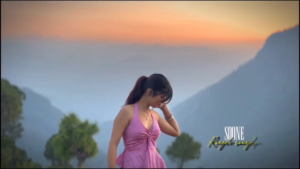


Agar aap manual colour correction mein time spend nahi karna chahte, toh Universal Colour Grading Hack use karein:
- Subject aur background dono layers set karne ke baad, timeline ke top-most track par ek blank transparent Adjustment Layer place karein ya pure project par ek single cohesive Filter (LUT) apply karein.
- Jab ek common colour profile (jaise Teal & Orange, Moody Dark, ya Vintage Film) subject aur new background dono par ek sath 40% opacity ke sath apply hoti hai, toh yeh visual disparity ko instantly neutralise kar deti hai.
- Dono visual elements ka colour grading spectrum identical ban jata hai aur poori image single camera shot jaisi cohesive appear hone lagti hai.
Advanced Professional Tips For Studio-Quality Edge Control


Professional editors jab background alter karte hain, toh unka focus sirf cut karne par nahi balki light wrap ko control karne par hota hai. Jab real world mein light kisi subject par padti hai, toh peeche ka ambient colour subject ke shoulders aur hair boundaries par reflect hota hai—ise post-production mein Light Wrap Effect kehte hain.
Is effect ko VN mein replicate karne ke liye background image ko halka sa blur (Gaussian blur) karke overlay par light opacity ke sath blend mode Soft Light ya Screen par set karein aur subject ke perimeter par halka sa feather linear mask laga dein. Yeh subtle visual cue photo ko mobile cut-paste look se utha kar proper composited digital artwork bana deta hai.
Conclusion
Mobile par professional photo background change karna ab kisi heavy desktop software ka mohtaaj nahi hai. VN Video Editor ke advanced cutout engines, chroma sliders, masking feathering aur precise colour-matching tools ka sahi use karke aap flat photos ko behad natural, layered aur cinematic visuals mein badal sakte hain. Roz alag-alag lighting conditions wali pictures ke sath in steps ki practice karein aur visual storytelling ko elevate karein.