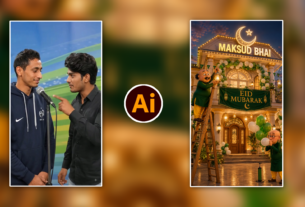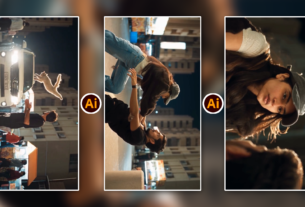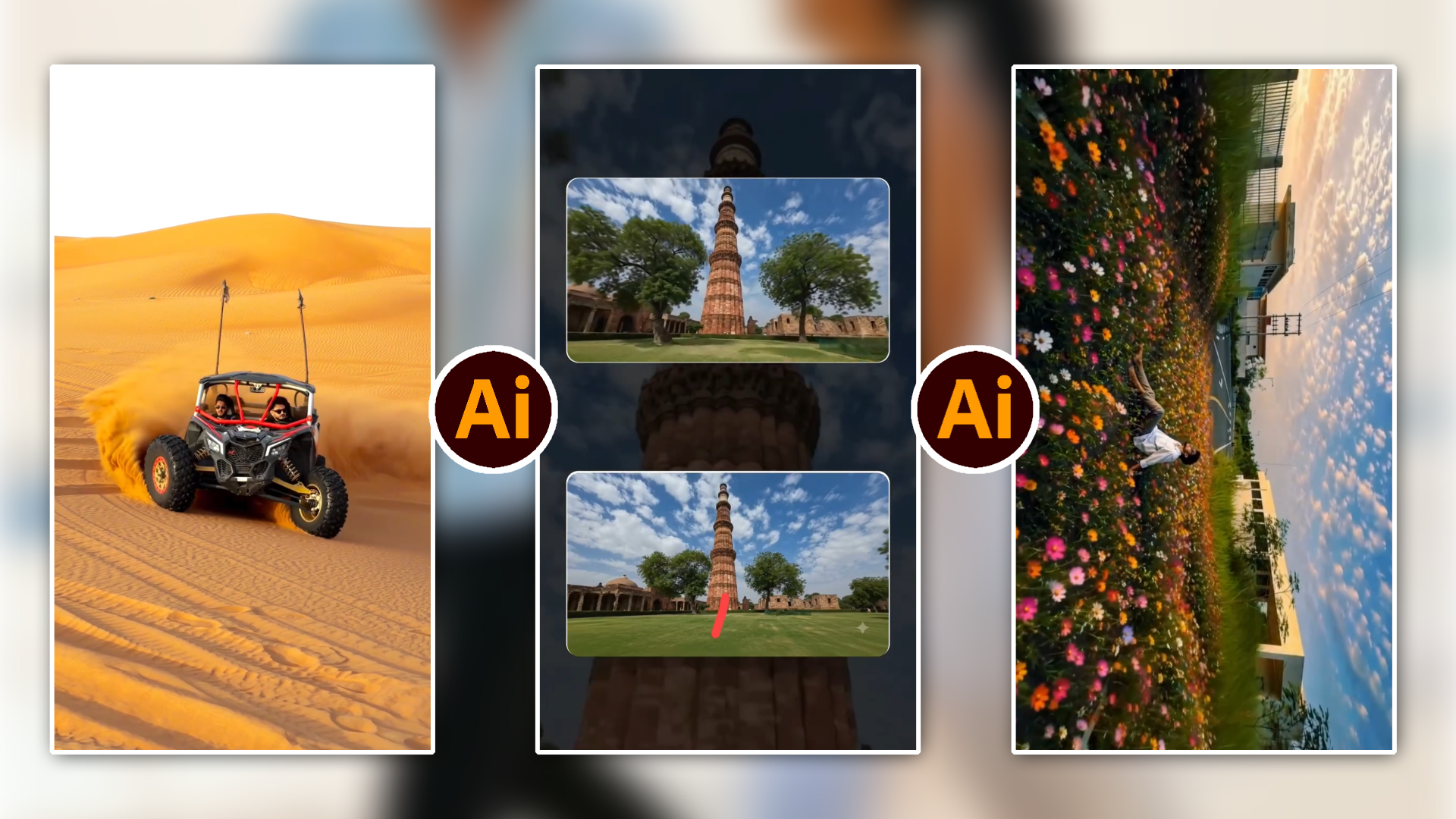
Hello everyone! Main m4editorofficial YouTube channel aur m4_editor_official Instagram handle ka creator hoon. Video editing industry mein mere paas 7+ years ka practical experience hai, jahan maine thousands of video reels, short clips, aur full-length projects edit kiye hain. Iss blog section ke through mera aim bilkul clear hai — beginner creators ko bina kisi confusing tech jargon ke, pure genuine, field-tested, aur realistic editing workflows sikhana taaki aap apne mobile se hi professional-level video aur photo content craft kar sakein.
Best AI Editing Apps for Android 2026: The Ultimate Creator Guide M4 92
Aaj ke time mein smartphone video creation ki duniya poori tarah badal chuki hai. 2026 mein artificial intelligence (AI) ne mobile editing ko itna fast aur smart bana diya hai ki jo kam pehle desktop software par ghanto lagata tha, wo ab Android phone par kuch taps mein ho jata hai.
Lekin Play Store par Hazaron options hone ki wajah se beginners aksar confuse ho jaate hain ki unke workflow ke liye konsa editor sabse best rahega. Iss detailed guide mein, hum Android ke top 10 AI editing apps ka complete breakdown dekhne wale hain — jisme free tools aur premium software dono shamil hain.
1. CapCut AI (Best Overall for Social Media Trends)
CapCut mobile short-form content creation ka undisputed leader hai. Iss app ke AI automation algorithms creators ko viral styles aur auto-edits seconds mein deliver karte hain.
- Key AI Features: Auto Captions, Smart Background Removal, AI Auto-Velocities, Smooth Slow-Motion Interpolation.
- Best For: Instagram Reels, YouTube Shorts, and TikTok trends.
- Pricing Structure: Free tier available (Pro subscription unlocks advanced AI effects).
How to Use CapCut AI Step-by-Step
- Play Store se CapCut install karein aur naya project open karein.
- Apni raw video clips ko timeline par import karein.
- Subtitles/captions ke liye bottom bar se Text > Auto Captions par tap karein, phir Language select karke Generate par click karein.
- Background hatane ke liye clip ko select karke Cutout > Remove Background option par click karein.
- Export button par tap karke 1080p ya 4K resolution select karein aur render karein.
Pro Tip: CapCut ka AI Relight feature use karke aap flat indoor lighting ko cinematic rim light mein convert kar sakte hain!
2. VN Video Editor (Best Free Editor with No Watermark)
Agar aapko ek clean, ad-free, aur professional-looking timeline chahiye bina kisi mandatory watermark ke, toh VN Video Editor sabse reliable free option hai.
- Key AI Features: Smart Speed Curve Editor, Auto Beat Sync, AI Voice Denoise.
- Best For: Clean YouTube Vlogs, Short Films, aur Commercial Ads.
- Pricing Structure: Completely Free for core tools (No Watermark on export).
How to Use VN Editor Step-by-Step
- App open karke + icon par click karein aur New Project choose karein.
- Clips add karne ke baad timeline mein Speed tap par jaayein.
- Curve Editor choose karke AI presets select karein taaki dynamic fast-slow transitions automatically apply ho jayein.
- Voiceover ko saaf karne ke liye audio track ko select karke Denoise tool apply karein.
- Top right corner se Export icon par click karke custom bitrate setting choose karke save karein.
3. Filmora Mobile (Best AI All-in-One Suite)
Wondershare Filmora Android version desktop-level smart processing capabilities offer karta hai. Iska AI engine audio and video matching mein kafi accurate hai.
- Key AI Features: AI Smart Cutout, Text-to-Video Generator, Auto Reframe, Audio Stretch.
- Best For: Multi-platform content distributors (Horizontal & Vertical sync).
- Pricing Structure: Freemium (Free exports contain a watermark; Pro unlocks clean output).
How to Use Filmora Mobile Step-by-Step
- Filmora open karein aur AI Tools section tab mein jaayein.
- Agar aap landscape video ko Reel banana chahte hain, toh Auto Reframe select karke clip upload karein.
- AI automatically subject ko frame ke center mein rakhega.
- AI Music Generator ka upayog karke video ki mood tone (Happy, Cinematic, Dramatic) ke hisab se copyright-free background track generate karein.
- Project review karke preferred resolution mein export karein.
4. InShot (Best Lightweight & Beginner-Friendly Editor)
InShot un logo ke liye perfect tool hai jo editing seekhna start kar rahe hain aur jinhe straightforward layout chahiye.
- Key AI Features: AI Object Tracking, AI Smart Effects, Instant Cutout.
- Best For: Quick social updates, Stories, aur basic edits.
- Pricing Structure: Free version with ad-supported watermark removal; InShot Pro option available.
How to Use InShot Step-by-Step
- Video section chun kar phone gallery se footage select karein.
- Canvas option mein jaakar Target Social Format (16:9 ya 9:16) lock karein.
- Effect > AI Effect tab mein jaakar body outline tracing aur glow effects choose karein.
- Free version mein watermark hatane ke liye top corner ke watermark cross icon par tap karein aur Free Remove (Watch Ad) select karein.
- Final video ko 60 FPS par save karein.
5. KineMaster (Best Multi-Layer Timeline Editor)
KineMaster Android par traditional multi-track editing layout ke liye jana jata hai. Iske AI tools background processing ko aur flexible bana dete hain.
- Key AI Features: Magic Remover (Chroma-less Green Screen), AI Style Transfer, Auto Master Audio.
- Best For: Detailed YouTube Tutorials, Gaming Videos, and Layered Content.
- Pricing Structure: Subscription-based for watermark removal and full asset access.
How to Use KineMaster Step-by-Step
- Create New click karke Aspect Ratio chunnein.
- Media browser se main background/video layer import karein.
- Secondary video/image add karne ke liye Layer > Media select karein.
- Second layer chun kar Magic Remover ko toggle turn ON karein taaki subject instantly transparent ho jaye.
- Audio mixing tools se volume envelope adjust karke final video render karein.
- 6. LightCut (Best One-Tap Automated AI Editor)
- LightCut un creators ke liye lifesaver hai jinke paas editing ke liye zyada time nahi hota. Yahan AI completely automatically video assemble karta hai.
- Key AI Features: One-Tap AI Scripting, Auto Template Matching, Smart Highlight Detection.
- Best For: Travel Vlogs, Action Footage, and Quick Summaries.
- Pricing Structure: 100% Free (Official Vlog Editor recommended by DJI).
How to Use LightCut Step-by-Step
- App kholte hi main screen par One-Tap Edit par tap karein.
- Gallery se apni 5-10 raw clips select karein.
- AI clips analyse karke highlights extract karega aur automatically background music sync karega.
- Suggested templates mein se pasandida theme choose karein.
- Subtitles ya text modify karke direct high-quality export run karein.
7. PowerDirector Mobile (Best High-Frame Rate & Motion Tracking App)
PowerDirector mobile screen par desktop-level power provide karta hai. Iska AI engine high-resolution 4K files ko bhi smoothly process karta hai.
- Key AI Features: AI Motion Tracking, Auto Voice Enhancer, AI Anime Filter, Body Shaper.
- Best For: Action Sports, Cinematic Reels, and VFX Work.
- Pricing Structure: Free trial / Paid Pro version.
How to Use PowerDirector Step-by-Step
- New project start karke footage timeline par drop karein.
- Motion tracking ke liye timeline clip select karein aur Motion Tracking feature enable karein.
- Tracker box ko moving object par place karein aur Track hit karein.
- Attached text ya sticker choose karein jo us tracking path ko follow karega.
- Export menu se 4K Ultra HD select karke save karein.
8. Lightroom Mobile (Best AI Photo & Frame Grading Editor)
Video creation mein thumbnail aur colour grading ka aadha role hota hai. Adobe Lightroom Mobile photo editing and colour space tuning ke liye industry benchmark hai
- Key AI Features: Adaptive AI Presets, Subject/Sky Auto Select, Generative Remove.
- Best For: Colour Grading Video Frames, YouTube Thumbnails, and Instagram Photos.
- Pricing Structure: Free core features / Premium for AI masking.
How to Use Lightroom Mobile Step-by-Step
- App mein apni RAW ya High-Res JPEG photo import karein.
- Masking icon par tap karke Select Subject ya Select Sky choose karein.
- AI-specific target region ko pinpoint select kar lega.
- Background Exposure, Contrast, aur Temp sliders adjust karke colour depth enhance karein.
- Export button click karke Export as JPG (100% Quality) save karein.
Adobe Express Mobile (Best AI Graphic & Content Creator Tool)
Adobe Express (Firefly engine integrated) quick design layouts aur AI generative images banane mein kaafi simple hai.
- Key AI Features: Text-to-Image Generation (Firefly), Generative Fill, One-Tap Resize.
- Best For: Promotional Posters, Short Video Overlays, Social Banners.
- Pricing Structure: Free tier available with monthly generative credits.
How to Use Adobe Express Step-by-Step
- App interface par Generative Fill option par tap karein.
- Uploaded image par unwanted element ko brush over karein.
- Prompt bar mein likhein ki aap us jagah kya substitute ya create karna chahte hain.
- Generated options mein se best output pick karein aur canvas par apply karein.
- PNG/JPG format mein file download karein.
10. PicsArt AI (Best All-in-One Photo & Visual Design Editor)
PicsArt modern mobile photo editing, thumbnail creation, aur artistic AI manipulation ke liye popular platform hai.
- Key AI Features: AI Background Replace, AI Image Enhancer, AI Object Replace.
- Best For: Creative Photo Manipulations, Banners, and YouTube Covers.
- Pricing Structure: Free with ads / Gold subscription tier.
How to Use PicsArt AI Step-by-Step
Video Prompt 👇
Photo Prompt 👇

Photo Prompt 👇
Video Prompt 👇

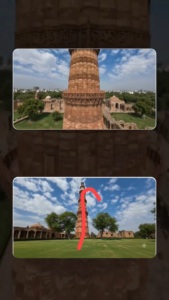
Video Prompt 👇
Transform this still image into an ultra-realistic FPV drone fly-through video. Follow the intended camera path indicated by the red line, but DO NOT include, render, or show the red line or any annotations in the final video. The red line is only a camera path reference.
The camera should move naturally like a real FPV drone with smooth acceleration, subtle banking, realistic turns, slight camera tilt, and natural stabilization.
- Open the app and tap + to upload your portrait photo.
- Bottom toolbar se Tools > AI Enhance choose karein image clarity, sharpness, aur resolution double karne ke liye.
- Background change karne ke liye Remove BG par tap karein aur instant AI backdrop options switch karein.
- Creative stickers aur typography overlay add karein.
- Save icon press karke device storage mein export karein.
Free vs Premium AI Apps Comparison Table
Editor App
Category
Watermark Free?
Best Core Strength
Target Users
CapCut
Video
No (Pro needed for clean templates)
Viral AI Captions & Effects
Reels / Shorts Creators
VN Editor
Video
Yes (100% Free)
Multi-layer Clean Timeline
Vloggers & Youtubers
Filmora Mobile
Video
No (Paid tier required)
Cross-platform AI Tools
Pro Mobile Editors
InShot
Video
Yes (Via watching ad)
Fast & Simple Social Edits
Total Beginners
KineMaster
Video
No (Watermark on free)
Precise Layer Editing
Tutorial & Gaming Editors
LightCut
Video
Yes (100% Free)
One-Tap Automated Edits
Quick Travel Vlogs
PowerDirector
Video
No (Paid subscription)
Motion Tracking & 4K Output
Cinematic Motion Editors
Lightroom Mobile
Photo
Yes
AI Selective Colour Grading
Photographers & Designers
Adobe Express
Photo/Design
Yes (Free credits limit)
Generative Fill (Firefly)
Content Strategists
PicsArt AI
Photo
Free tier available
Background & Object Replace
Thumbnail Creators
Bonus Tip: The “AI-Plus-Manual” Workflow Secret
Aisa dekha gaya hai ki pure automated AI outputs kabhi-kabhi oversaturated lagte hain ya unnatural cuts banate hain. Master editing result ke liye humesha Hybrid Editing Method apply karein:
Automation Phase: Pehle AI se repetitive tasks karwayein (jaise Noise Removal, Auto Subtitles, aur Subject Masking).
Manual Fine-Tuning Phase: Iske baad human touch dein — manual colour balance, custom audio level adjustments, aur hand-picked transition timing.
Expert Workflow Hack: Auto Captions generate karne ke baad font size, tracking, aur colour drop-shadow manual set karein. Isse aapka content generic AI template nahi balki branded video look dega!
Conclusion
Mobile AI editing tools ne 2026 mein video production process ko completely democratize kar diya hai. Agar aap social media trends fast catch karna chahte hain toh CapCut try karein; bina watermark clean editing ke liye VN Video Editor sabse best free tool hai; aur professional thumbnail graphics ke liye Lightroom & Adobe Express ka combination use karein. Editing ek art hai — AI tools aapka time bacha sakte hain, lekin aapki creativity hi aapke content ko viral aur engage banayegi. Konsa app aapki workflow style ko suit karta hai, use install karein aur aaj hi practice start karein!